

Understanding the Feed
Feed  is the main page of Pasaj. This is the home page where all available book listings are displayed in an infinite scroll format.
As you scroll, new listings automatically load, allowing you to continuously browse and find books nearby without interruption. The Feed is designed to help you quickly discover relevant book swap opportunities around you.
Results are personalized and ranked using a custom scoring system primarily influenced by:
- Your interested categories
- The distance between you and the book location
Additional factors may also contribute to ranking in order to improve relevance and ensure you see the most suitable book exchange opportunities nearby.
Location Services Requirement
Feed requires location services to be enabled on your device.
Pasaj uses your approximate location to:
- Show books nearby
- Calculate the distance between you and each listing
- Sort and rank results accordingly
If location services are disabled, the Feed will not be able to render results properly.
For more details, see the article
How to Enable Location Services in Pasaj
Understanding the Book Post UI
Each book listing in the Feed contains several key UI elements. Understanding them will help you browse and evaluate listings efficiently.
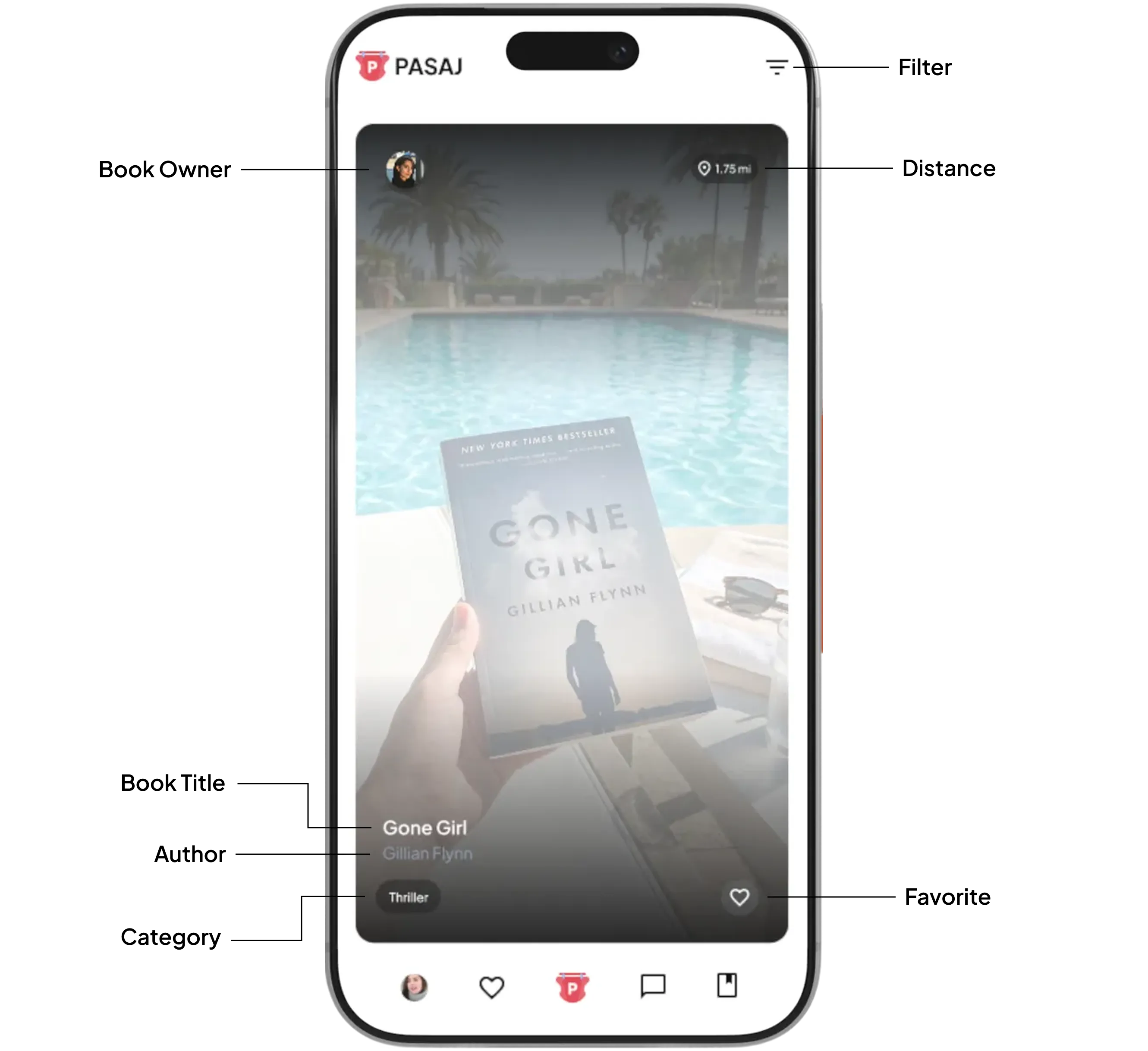
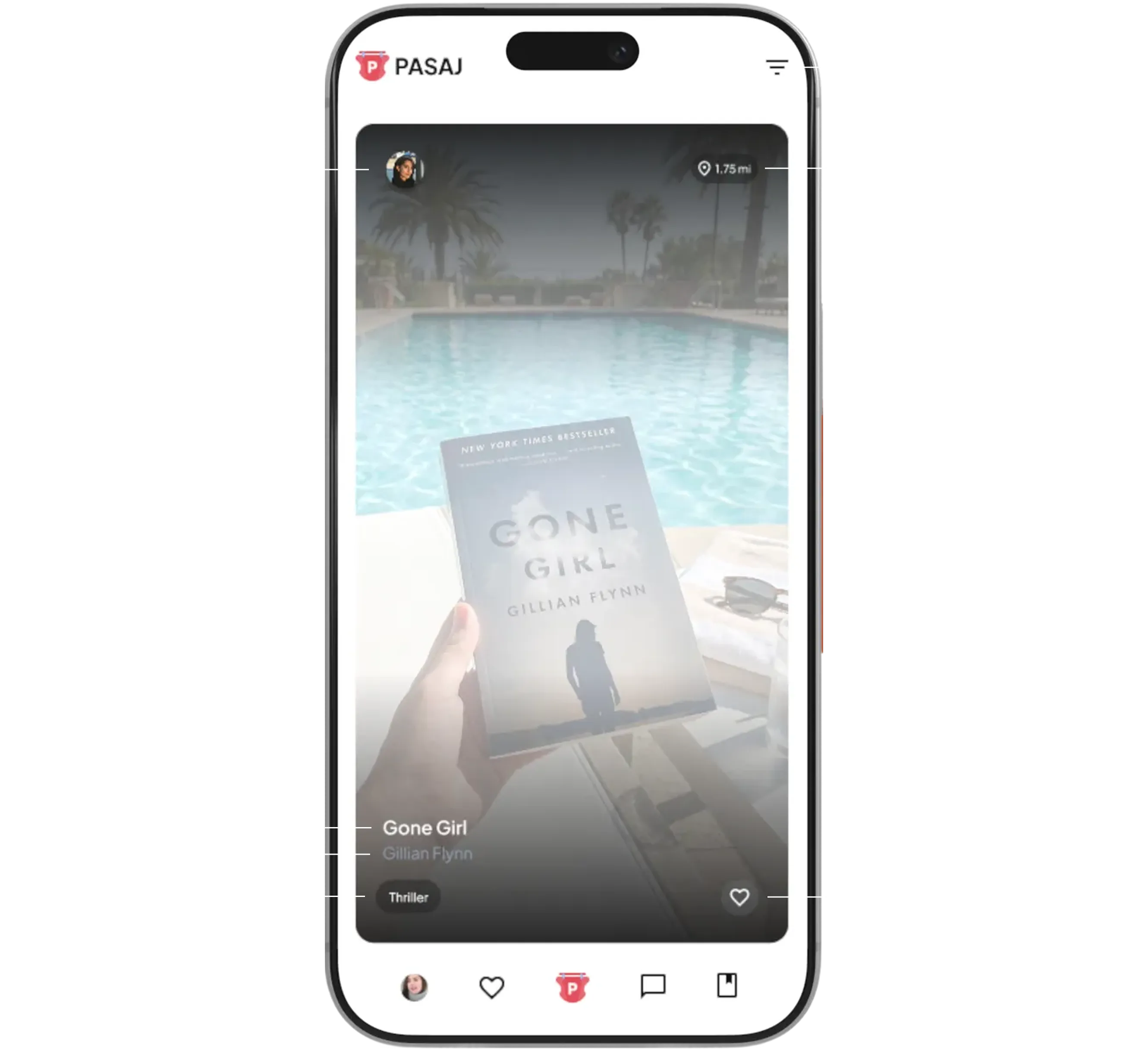
Top Left: Owner Avatar
The circular avatar in the top-left corner represents the user who posted the book.
Top Right: Distance Indicator
The top-right corner shows the distance between you and the book’s location.
This distance can be displayed in:
- Metric (kilometers)
- Imperial (miles)
You can change this preference by visiting Units.
Distance plays an important role in helping you prioritize book swap opportunities that are closer to you.
Bottom Left: Book Details
The bottom-left section displays:
- Book title
- Author name
- Category label
The category label helps you quickly identify whether the book matches your interests, especially if you are looking to exchange books nearby within specific genres.
Bottom Right: Favorite Button
The bottom-right corner includes the Favorite option.
Tap this icon to save the book to your Favorites list. This is useful if you want to review it later before initiating a swap request.
Refreshing the Feed
To refresh the Explore Nearby Books page:
- Scroll to the top of the Feed
- Pull down to refresh
This will reload the latest listings and update results based on your current location and preferences.
Back to Top
If you have scrolled far down the Feed, tap the “Back to Top” button to quickly return to the beginning of the list.
This helps you efficiently navigate long browsing sessions.
Filtering and Search Options
Tap the Filter icon to open advanced filtering options.
From there, you can:
- Enter search terms
- Narrow results by categories
- Apply additional filtering criteria
Using filters allows you to refine results and more easily find books nearby that match your specific interests for book exchange. To explore more, browse through the Feed · Filter section.
Returning to the Feed
While browsing other pages in the app, you can return to the Feed at any time.
To go back to Feed, tap the Pasaj icon located at the center of the bottom navigation menu.
This will instantly bring you back to the main Feed so you can continue browsing and swapping books nearby.
Need Help?
If you need further assistance, have additional questions, or want to share feedback or a product idea, please join us in live chat right now by tapping the button in the bottom right corner of this page.
Frequently Asked Questions
What is the Feed in Pasaj?
Feed is the main page of Pasaj where all available book listings are displayed in an infinite scroll format. It is designed to help you quickly discover book swap opportunities nearby.
How does the infinite scroll work in Explore Nearby Books?
As you scroll down the Feed, new listings automatically load. This allows you to continuously browse books nearby without interruption.
How are books ranked in the Feed?
Results are personalized and ranked using a custom scoring system primarily influenced by your interested categories and the distance between you and the book location. Additional factors may also contribute to improve relevance.
Do my interested categories affect what I see in the Feed?
Yes. Your interested categories directly influence ranking, helping you see more relevant book exchange opportunities nearby.
Does distance affect which books appear first?
Yes. The distance between you and the book location plays a key role in sorting and ranking results in the Feed.
Why do I need location services enabled to use the Feed?
Feed requires location services to show books nearby, calculate the distance between you and listings, and sort results accurately.
What happens if location services are disabled while using the Feed?
If location services are disabled, the Feed will not be able to render results properly because distance calculations and ranking depend on your approximate location.
What information is displayed on each book listing?
Each listing shows the owner avatar (top left), the distance indicator (top right), book title, author name, category label (bottom left), and a Favorite button (bottom right).
What does the owner avatar represent?
The circular avatar in the top-left corner represents the user who posted the book.
What does the distance indicator mean on a book post?
The top-right corner shows the distance between you and the book’s location, helping you prioritize nearby swap opportunities.
Can I change the distance units from miles to kilometers?
Yes. Distance can be displayed in metric (kilometers) or imperial (miles). You can change this preference in Units.
What details are shown in the bottom-left section of a listing?
The bottom-left section displays the book title, author name, and category label to help you evaluate whether the book matches your interests.
How do I save a book to review later?
Tap the Favorite icon in the bottom-right corner of the listing to save the book to your Favorites list.
How do I refresh the Explore Nearby Books page?
Scroll to the top of the Feed and pull down to refresh. This reloads the latest listings based on your current location and preferences.
What does the “Back to Top” button do?
If you have scrolled far down the Feed, tapping the “Back to Top” button quickly returns you to the beginning of the list.
How do I search for a specific book in the Feed?
Tap the Filter icon to open advanced filtering options, where you can enter search terms and refine results.
Can I filter books by category?
Yes. In the Filter section, you can narrow results by categories and apply additional filtering criteria.
How do filters improve my browsing experience?
Using filters helps refine results so you can more easily find books nearby that match your specific interests for book exchange.
How do I return to the Feed from another page in the app?
Tap the Pasaj icon located at the center of the bottom navigation menu to instantly return to the main Feed.
Why aren’t relevant books showing up in my Feed?
If relevant listings are missing, ensure location services are enabled and your interested categories are properly set, as both influence ranking and visibility.